
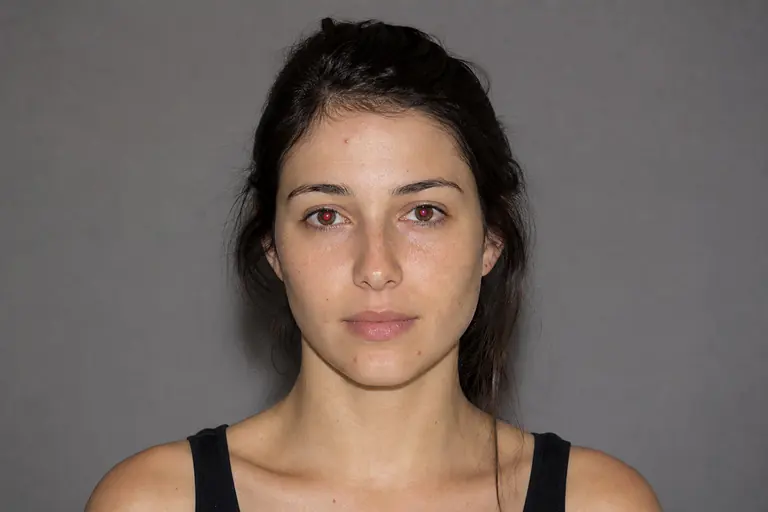

What this tool does
Smudge pushes and blends existing pixels along the direction of the stroke.
Remove distractions, repair details, reshape tone, and polish portraits non-destructively.
How to use it
- 01
Open an image and choose Smudge from the left toolbar.
- 02
Use low strength, drag along the natural texture direction, and build the effect with short controlled strokes.
- 03
Review the result at 100% zoom. If the change is too strong, undo it and repeat with a lower intensity.
What you can make
- Blend paint and soften tiny transitions
- Pull color into stylized shapes
- Smooth a hard retouching seam