
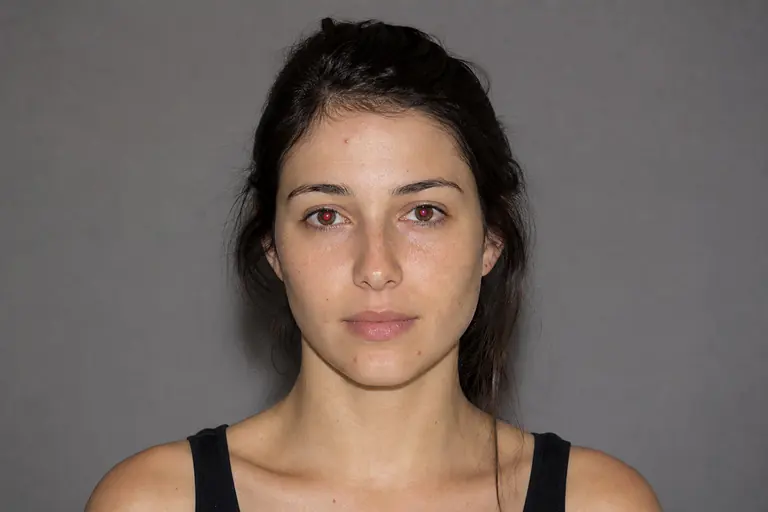
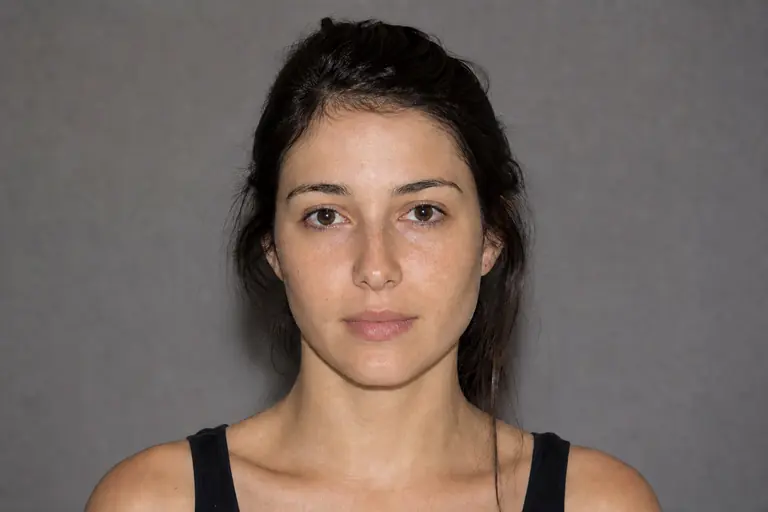
What this tool does
Burn selectively darkens painted areas to deepen shadows and guide attention.
Remove distractions, repair details, reshape tone, and polish portraits non-destructively.
How to use it
- 01
Open an image and choose Burn from the left toolbar.
- 02
Choose a low exposure, paint along existing shadows, and compare frequently with the original.
- 03
Review the result at 100% zoom. If the change is too strong, undo it and repeat with a lower intensity.
What you can make
- Add depth to folds and contours
- Darken distracting bright edges
- Create subtle vignette-like focus