
How to Batch Resize and Convert Photos Online
Resize, convert, compress, and watermark up to twenty images with one consistent browser-based batch workflow.
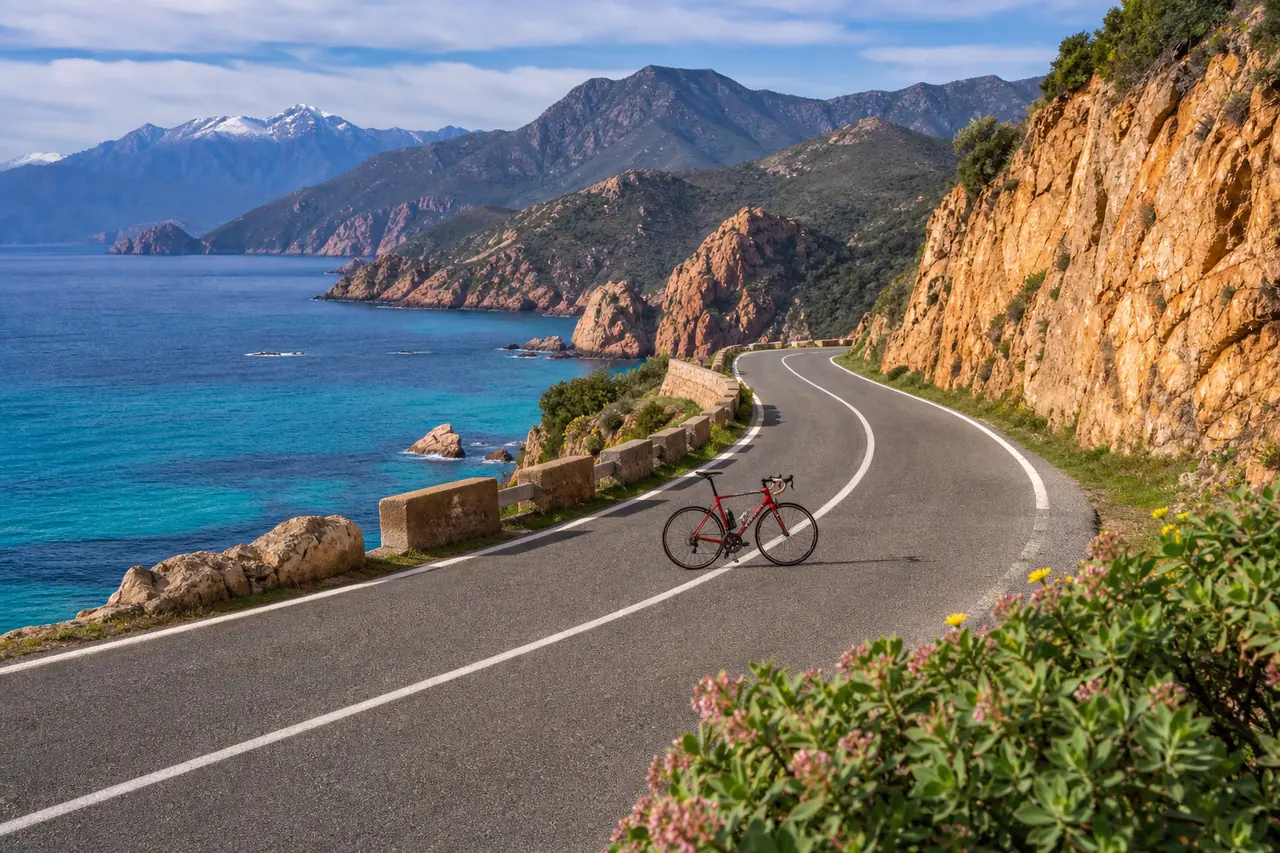
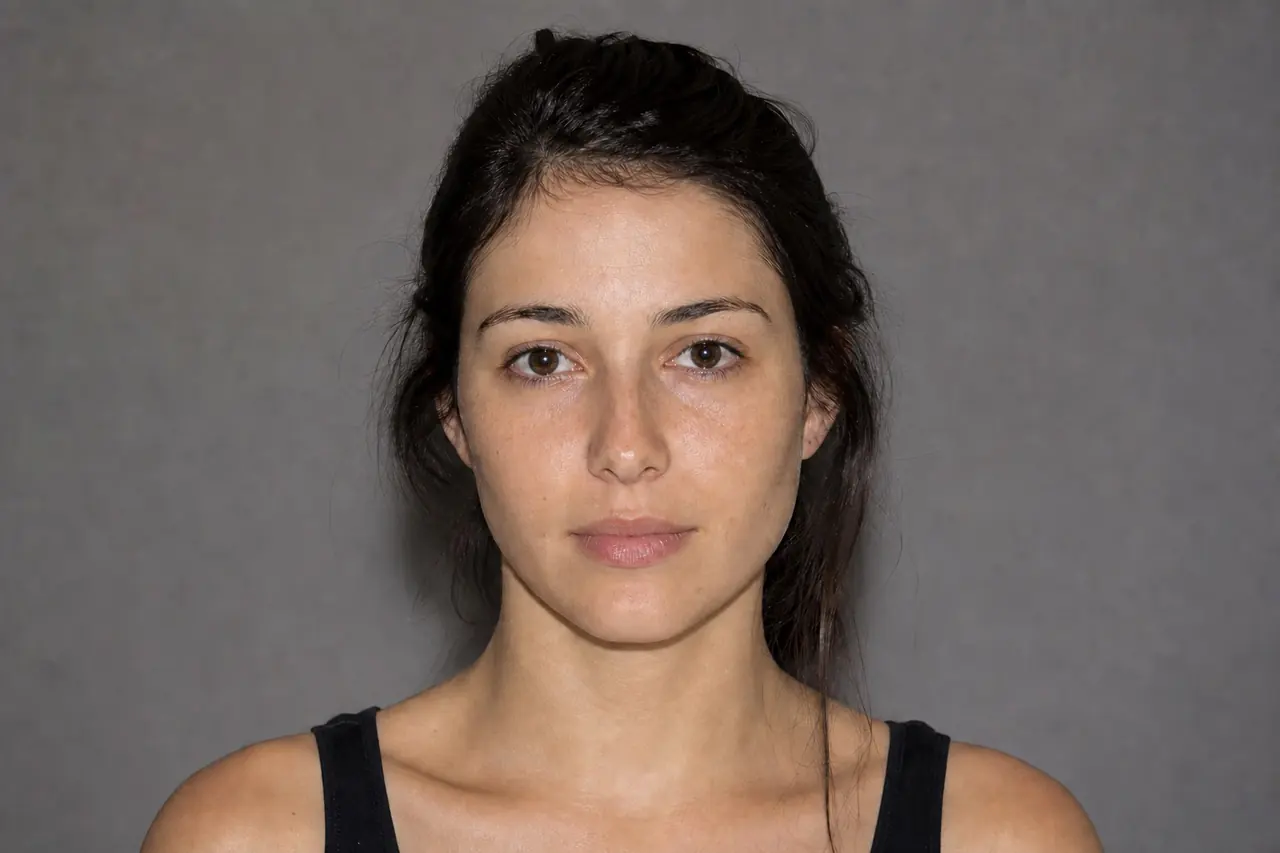
Batch processing is useful when every image needs the same delivery rule. Prepare clean sources, choose one maximum edge and format, test a representative file, and only then process the full queue.
Recommended workflow
- 01
Prepare the sources
Remove duplicates and separate files that need individual cropping or retouching. Batch processing is best for images that can share one rule.
- 02
Add the queue
Drag or select up to twenty supported images. Review filenames and source sizes before running the operation.
- 03
Set one delivery rule
Choose JPG, PNG, or WebP, set the maximum edge and quality, and add an optional text watermark. Originals remain unchanged.
- 04
Process and inspect
Run the queue, allow multiple downloads if the browser asks, and inspect a landscape, portrait, and detailed image from the result set.
What batch processing should standardize
A maximum edge keeps orientation and proportions while limiting the largest dimension. Landscape and portrait photos can therefore enter one queue without being stretched into identical canvases.
One output format and quality simplify delivery to a website, client, or archive. A watermark can apply consistent attribution, but its placement and length should be tested against very different compositions.
When to leave the batch queue
Images that need face retouching, horizon correction, unique crops, masks, or text layout should be edited individually first. Automation cannot make a composition decision for every source.
Keep the originals in a separate folder and treat the downloaded batch as a reproducible delivery set. If the settings are wrong, change the rule and regenerate rather than editing every derivative manually.
Common mistakes
- Mixing files that require different crops and expecting one batch rule to fix them.
- Applying an unreadable or oversized watermark without a test run.
- Deleting originals after downloading the processed set.
Questions and answers
How many images can I process at once?
The current ImageWaveLab batch queue accepts up to twenty supported images per run.
Does batch resize stretch portrait images?
No. The maximum-edge rule scales each image proportionally, so portrait and landscape orientations remain intact.
Are the original files changed?
No. Processing happens in the browser and downloads new derivatives; the selected source files remain unchanged.